Define printer host addresses
Host addresses tell Device Scout and the Device Discovery and Deployment Utility (DDU) where to look for printers. You can add single IPv4 or IPv6 addresses and hostnames, include or exclude IPv4 ranges, or import a list from a text file. You enter them on the Configure Printer Host Address step of the Setup Guide, for example in Secure > Setup Guide.
Before you begin
- You know the IP ranges, subnets and hostnames that contain your printers. See the Readiness checklist.
How the host addresses are used
- Device Scout scans these addresses to discover your printers.
- The Device Discovery and Deployment Utility, used in Secure Print deployments with cloud-connected devices, uses them as the default scan range for its first scan.
Note: Add host addresses before you download the Device Discovery and Deployment Utility. The utility takes its default scan range when you download it, so addresses you add afterwards aren't included.
You can also select Use local network range. Device Scout then scans only its local subnet, based on the IP address and subnet mask of the server it runs on.
Note: If you add only exclusions, no printers are discovered.
Add a single IP address or hostname
- Select Host Address (IPv4, IPv6, Hostname) from the drop-down list.
- Enter the IP address or hostname in the first box.
- Select Add. The address appears in List of Host Address.
- Select Save.
Add or exclude an IPv4 range
- Select IPv4 Range from the drop-down list.
- Enter the first IP address of the range in the first box, and the last IP address in the second box.
- Select Add Range to include the range, or Exclude Range to exclude it.
- Select Save.
Import host addresses from a file
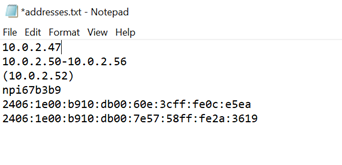
Put each entry on its own line in a text file. An entry can be a hostname, an IPv4 address, an IPv6 address or an IPv4 range, and one file can mix them. This example shows an included IP range, an included IP address and an excluded IP range:
- Select Host Address (IPv4, IPv6, Hostname) from the drop-down list.
- Select Import, then choose the file. The addresses in the file appear in List of Host Address.
- Select Save.
Delete a host address
- In List of Host Address, select the address you want to remove.
- Select Delete.
- Select Save.
Next step: Download the Device Scout