Configuring QR Sign In
QR Sign-In is a mobile authentication method for Secure Print that lets users sign in at a printer by scanning a QR code on the device screen using the Secure Print mobile app. Because the user is already authenticated in the app through their organization’s identity provider, signing in at the printer is a simple approval tap — no credentials need to be entered at the device.
This guide explains how to enable QR Sign In for your organization and configure it on individual printers.
Why Use QR Sign-In
HP Insights supports several ways for users to authenticate at the printer: proximity card, keyboard sign-in (passcode or username and password), and QR Sign-In. Each suits different environments and user preferences.
QR Sign-In is a good fit for organizations that use OpenID Connect (OIDC) or SAML as their identity provider and want printer authentication to flow through the same centralized identity system.
Rather than authenticating with a passcode at the device, users approve the sign-in through the mobile app using their already-established identity provider session consistent with how they access other corporate applications.
It gives administrators a way to extend their existing identity governance to the printer, and gives users a familiar authentication experience at the device.
How it works
-
A QR code is displayed on the printer's screen.
-
The user opens the HP Secure Print mobile app on their iOS or Android device.
-
The user scans the QR code on the printer screen.
-
The mobile app prompts the user to approve the sign-in to the printer. No re-authentication with the identity provider is required — the user is already authenticated through the session established during mobile registration.
-
The printer receives the confirmation and unlocks. The user can release their queued print jobs at the device.
QR Sign In vs QR Release
HP Insights has two distinct QR code features that are often confused. They are independent and do not require each other to be enabled.
-
QR Sign In - QR code displayed on the printer screen. User scans it with the mobile app to authenticate and release jobs at the device.
-
QR Release (previously called Mobile Release) - QR code on a printed label attached to the printer. User scans it to release jobs from their mobile device.
Prerequisites
Before enabling QR Sign In, confirm the following:
-
Your identity provider is configured as OpenID Connect or SAML.
-
Your printers are on a supported OEM. QR Sign-In is available on HP devices only.
-
End users have the HP Insights mobile app (iOS or Android) installed and their device registered. This feature requires HP Secure Print mobile app 3.0.0 or later for both Android and iOS.
-
A DDU connector or On-Premise Site Service that supports QR Sign-In is available and connected. Supported with Secure Print Service 2604.1607.829 and DDU version 2.2.1.
Note: The Mobile Access toggle (Secure > Settings > Mobile) controls whether end users can register a new mobile device. It must be ON for new device registration to succeed. Already-registered devices can use QR Sign-In even if Mobile Access is later turned off but new users will not be able to register until it is re-enabled.
Step 1: Enable QR Sign In Globally
QR Sign In is controlled by a global setting that determines whether it is available as a per‑device option.
To enable QR Sign In globally, go to Secure > Settings > Secure Print Settings, and under Printer Sign In Options, turn QR Sign In on.
Note: Enabling QR Sign In at the settings level does not change any individual printer configuration yet. It enables the admin workflow to deploy QR Sign In to devices via the Secure Printers page
Step 2: Enable QR Sign In Per Device
QR Sign-In is a per-device sign-in option, configured alongside Card Reader and Keyboard login. It must be set on each printer individually.
-
Navigate to Secure > Secure Printers.
-
Select one or more target printers that support QR Sign In.
-
Click Deploy Printer Sign. The Deploy Sign In Options dialog opens.
-
Move QR Sign In from Available Sign-In Options to Enabled Sign-In Options. Choose any other sign-in options you want to enable (for example, Card Reader, Keyboard Sign In).
-
In the Select Deployment Connector dropdown, choose the connector to use for provisioning:
-
Automatic — HP Insights selects the first available DDU or On-Premise Site Service that supports QR Sign-In. Use this in most cases.
-
A specific connector — Select a named DDU or On-Premise Site Service if you need to target a particular one (e.g. in environments with multiple connectors).
-
-
If you are adding QR Sign-In to a printer that is already secured with another sign-in method, check the Force Redeploy checkbox. This ensures the updated configuration is pushed to the device. For a fresh installation, Force Redeploy is not needed.
-
Save changes.
Step 4: Verify the Configuration
In the Secure Printers grid, confirm the QR Sign In column shows a checkmark for the devices you configured (blank = not enabled, dash = not supported).
Confirm any other columns (Card Reader, Keyboard Sign In) reflect your chosen configuration.
If QR Sign In remains blank for a device that you expected to support it, review the device model limitations or the connector status. Only HP devices are supported at this time.
Step 5: Validate the end-user experience
-
On a secure printer, select QR Sign In on the printer panel.
-
A temporary QR code is displayed on the printer screen.
-
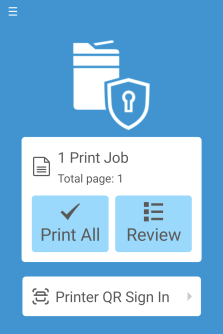
On the end user’s phone, open the mobile app and choose Printer QR Sign In, then scan the on‑screen code.
-
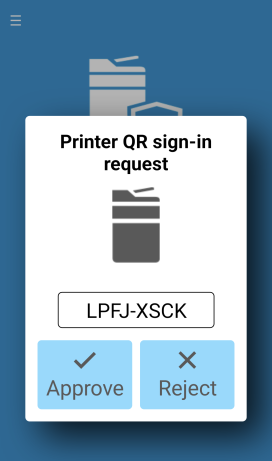
The mobile app prompts the user to Approve or Deny the sign-in. Upon approval, the printer session is authenticated.
-
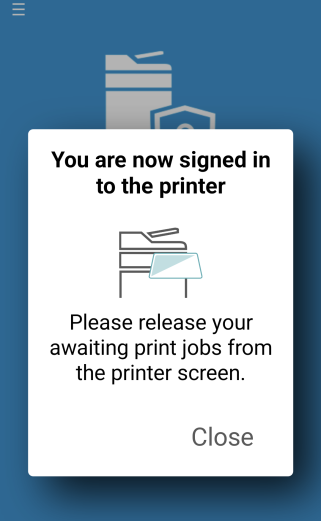
Once the sign-in is approved, the user is signed in at the printer and can release their queued print jobs at the device. If QR Release is also enabled, jobs can also be released from the mobile app. The mobile app returns to the home screen after approval.
-
If QR Sign In is enabled and QR Release is not, users see the Printer Sign In path in the mobile app, but Print/Print All are not available.
-
If both QR Release and QR Sign In are enabled, the mobile app shows Print, Print All, and Printer Sign In.
QR Sign In Troubleshooting
The QR Sign In option doesn’t appear on the printer
-
Confirm QR Sign-In is enabled in Secure > Settings > Secure Print Settings. The global toggle must be ON before the option is available at the device level.
-
Check the printer’s QR Sign-In column status in the Secure Printers grid. If the column shows the option is not enabled for that device, run Deploy Printer Sign-In and move QR Sign-In to the Enabled Sign-In Options panel.
-
Verify the device model supports the new sign-in screens. QR Sign-In is supported on HP devices only.
-
If the device model is supported but the screen still does not update, open the Deploy Sign-In Options dialog, check Force Redeploy, and save again to push the configuration to the device.
-
Ensure the connector used to secure the device is online and reachable. If the DDU or On-Premise Site Service was offline at the time of provisioning, the setting may not have been applied. Select the same connector in the deployment dialog and re-save.
Mobile app can’t use Printer Sign In
-
Verify Mobile Access is ON in Secure > Settings > Mobile and that the user is permitted to use the mobile app. Without this, new device registration will fail and the user cannot authenticate via QR Sign-In.
-
Confirm the user is signed into (registered) the HP Secure Print mobile app mobile app
-
Ensure the user is scanning the on-screen sign-in QR code displayed on the MFP, not the static QR Release label that may be attached to the printer. These are two different QR codes: the on-screen code is for QR Sign-In; the printed label is for the legacy QR Release workflow.
-
QR codes on the printer screen expire after approximately 5 minutes. If the scan fails, ask the user to return to the printer home screen and re-initiate sign-in to generate a fresh code.
-
Confirm the user's mobile device is running a supported iOS or Android version.
Admin UI shows device enabled but sign-in fails
-
Use Force Redeploy to re-apply the sign-in package. Open the Deploy Sign-In Options dialog for the affected device, check the Force Redeploy checkbox, and save. This bypasses the provisioning service’s change-detection logic and forces a full install to the device.
-
If the environment mixes connector versions, re-secure with the connector that supports QR Sign In.