Configuring Policy Print
Overview
Policy Print enables administrators to deploy and manage organization-wide printing policies that encourage responsible printing behavior across the enterprise. When a user submits a print job that matches a defined policy rule, a message is displayed to inform them of the policy and guide them toward more sustainable printing choices before the job is sent to the printer.
Examples of Policy Print in Action
Use Policy Print to guide users toward responsible printing habits at the point of job submission. The following examples illustrate how you can apply Policy Print to promote responsible printing
-
Encourage duplex printing - Prompt users to print double-sided instead of single-sided to reduce paper usage.
-
Promote black & white printing - Remind users that color printing incurs higher costs and should be used only when necessary.
-
Discourage printing of confidential documents - Alert users when attempting to print sensitive content to help prevent data exposure.
-
Discourage high-volume print jobs - Notify users when submitting large print jobs to encourage digital alternatives or batching.
-
Restrict USB printing - Prevent or warn users about printing directly from USB devices to maintain security and control.
These examples help foster a culture of mindful printing and support your organization’s sustainability and security goals.
Key Benefits of Policy Print
-
Reinforces printing best practices at the moment of action.
-
Helps reduce unnecessary printing and optimize resource usage.
-
Builds a culture of sustainability and accountability across the organization.
Examples of popup messages that users see when a rule is triggered:
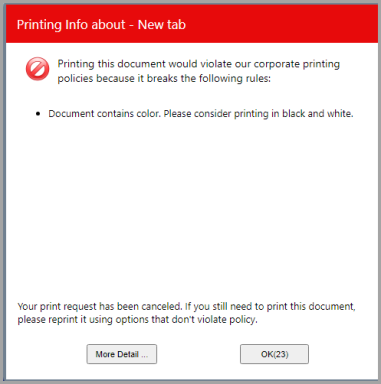
Deny Notification enforces organizational policy.
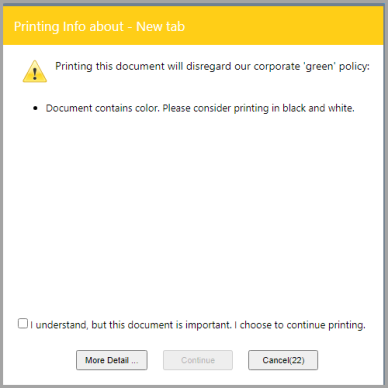
Warn Notification informs and educates users on sustainable and cost-effective alternatives while allowing them to continue printing their documents.
Policy Print Components
A policy consists of several components:
| Component | Description |
|---|---|
| Rule |
Defines the set of conditions that will be implemented for a given policy. A policy can have one or more rules, each containing the following:
|
| Group | The group of employees that the policy will be applied to. |
| Priority | Defines the relative priority of a policy. Employees may belong to more than one group and may be assigned more than one policy. In this case, the policy with the higher priority is used. |
User Experience
Policy Print is a transparent application that requires no additional user training. The following shows how Policy Print works.
- Windows Print Scout is installed on user workstations.
- Users continue to print documents to the Secure Printer as they normally would.
- The Print Scout analyzes the document to check whether they comply with the policies defined in the web console.
- When a document matches a rule in the Policy and the user belongs to the defined group in the policy, the user receives a pop-up notification with a suggestion or a job cancellation notice (depending on the action applied to the policy).
Supported Client Workstations (Print Scout)
Policy Print requires the Print Scout component to be installed on user workstations. The Workstation Print Scout is responsible for monitoring and applying policies. This preview version of Policy Print supports installing the Policy Print capable Print Scout on the following versions of Windows.
- Microsoft Windows 10
- Microsoft Windows 11
Note: Policy Print is not supported with the Print Server Scout.
Note: Policy Print supports Print Scout v7.26.18.100 or greater.
Supported Customer Configurations
Policy Print applies to Print Analytics, Secure Print Direct, and HP Secure Print, and supports the following authentication providers (Internal and Active Directory apply to tenants configured with them before July 2026):
- Internal Authentication
- OpenID
- Active Directory
Policy tab in the Web Console
You can configure Policy Print in the Profile > Policy tab of the web console. This is where you create view, modify, and delete policies. The Policy subtab has the following action buttons:
- Create – Use the Create button to add a policy.
- Edit – Use to edit a policy.
- Remove – Use to delete a policy.
- Move Up and Move Down – Use to change the priority order of a policy.
- Configure – Enable or disable Policy Print and other Policy Print related settings.
The Configure button includes general settings that apply to policies
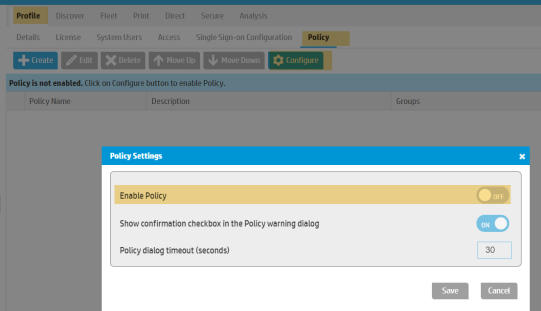
- Enable Policy – Policy enforcement is disabled by default. Toggle the switch ON to enable policy. If the policy is OFF, no policy will be applied to employees.
- Show confirmation checkbox in the Policy warning dialog – This setting is used whether to show the confirmation box in the Policy Print notification. A confirmation checkbox is shown in the Policy Print pop-up if a Warn action is triggered.
- Policy Dialog timeout (seconds) – The amount of time the policy notification popup will remain on the screen. If the employee on the workstation does not do anything, then the policy notification pop up times out and will auto close. The default pop up timeout value is 30 seconds. The maximum timeout value is 300 seconds.
Limitations
- To support sites that have mixed domain configurations where the DNS differs from the user domain, there is an optional configuration variable that can be set to override the domain the Print Scout is configured with. This feature does not work with Policy Print.
- Policy Print is not supported on macOS.
- Printing a "black and white" document to a direct printer triggers a color policy (if one is set).