How to reset your passcode
Users can reset their passcode using any of the available methods.
-
Print Scout – If installed, reset using the HP Secure Print desktop app in the tray
-
End-user portal – If enabled, you can reset the passcode using the end-user portal
-
Mobile app – If installed, you can reset your passcode using the mobile app.
More than one option may be available at the same time. For example, you can have Print Scout installed and still reset your passcode using the user portal or the mobile app.
Resetting your Passcode using the HP Secure Print desktop app
Launch the HP Secure Print desktop app by clicking the HP Secure Print desktop app icon in the task notification area.

In the HP Secure Print desktop app dialog, click the account icon and then select Reset Passcode.
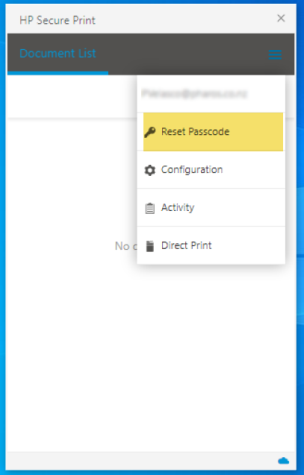
You'll see the authentication screen and clicking Login to continue generates a new passcode. This passcode will also be sent to you via email in case you forget it.
Resetting your passcode using the end-user portal
To reset your passcode using the user portal, follow these steps.
1. Sign in to the user portal if not already signed in.
2. Click on the Menu icon located on the right-hand side of the user portal and then select Passcode.
3. The Passcode screen appears. Click the Generate button to create a new passcode.
4. A new passcode is generated. Copy the passcode to your clipboard and save it for future use.
Note: For security reasons, your passcode is only shown at the time it is generated or reset. If you return to the User Portal later, you will not be able to view the existing passcode. If you forget it, you must generate or reset a new passcode
Resetting your passcode using the mobile app
You can reset your passcode directly from the Secure Print mobile app.
-
Open the Secure Print mobile app.
-
If you do not have a passcode or your passcode has already expired, a dialog box appears with an option to reset it. Tap Reset to generate a new passcode.
-
If your passcode has not yet expired and you want to reset it manually. From the hamburger menu, under Other, tap Reset Passcode.
-
A new passcode is displayed, copy and save it for future use.