Connect Secure Scan to Microsoft 365
Before users can scan to OneDrive, SharePoint or Microsoft 365 email, a Microsoft Entra ID administrator must approve the HP Insights app for your organization. After that, each user authorizes the app for their own account the first time they scan to a Microsoft 365 destination, so Secure Scan can deliver scans on their behalf.
Before you begin
- You can sign in to the Azure portal as a Global Administrator.
- Secure Scan is set up in a device profile, with the Microsoft 365 destinations turned on. See Set up Secure Scan.
The HP Insights app and its permissions
| Application name | HP Insights |
| Application (client) ID | afe97133-a356-42df-b5b3-b87eb06b09b2
|
What the app does
The HP Insights app registration in Microsoft Entra ID is how Secure Scan gets access to Microsoft 365. It doesn't hold any access of its own: it works on each user's behalf, and it's used for three things:
- Initial authentication: getting the user's consent and their first tokens, the first time they scan to a Microsoft 365 destination.
- Token refresh: getting new access tokens when they expire, using refresh tokens, so users don't have to authorize again each time.
- Permission grants: defining which Microsoft Graph permissions Secure Scan can use.
Permissions
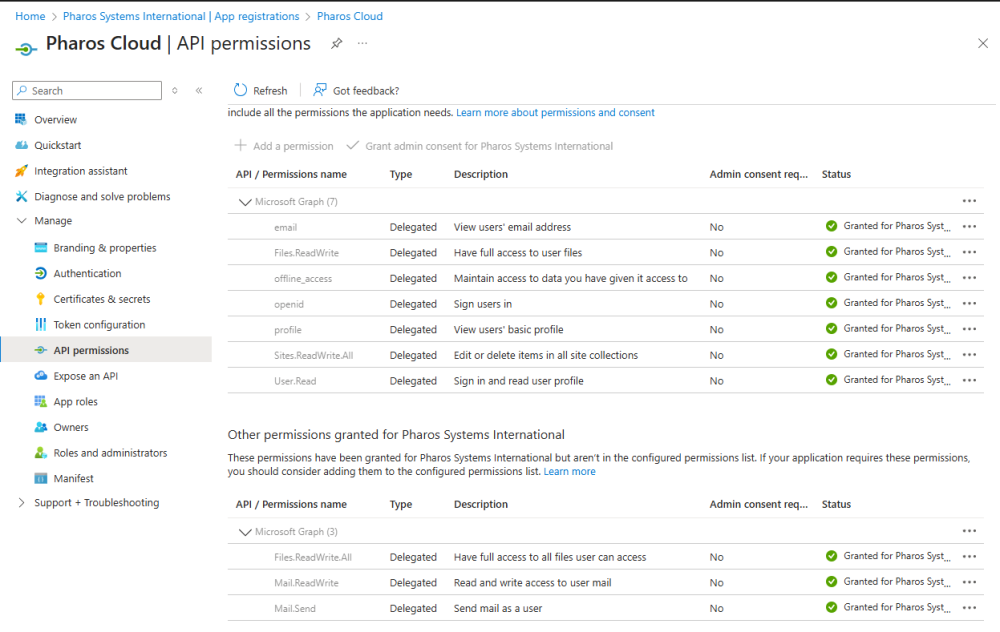
The app uses the Microsoft Graph permissions below. This is the complete list. They're all delegated permissions, so the app can only reach what the signed-in user already has access to.
| Permission | Permission type | Required for |
|---|---|---|
openid
|
Delegated | Sign-in (all Microsoft 365 destinations) |
email
|
Delegated | Sign-in (all Microsoft 365 destinations) |
profile
|
Delegated | Sign-in (all Microsoft 365 destinations) |
offline_access
|
Delegated | Token refresh, so users stay signed in |
User.Read
|
Delegated | User identity |
Files.ReadWrite
|
Delegated | Scan to OneDrive |
Sites.ReadWrite.All
|
Delegated | Scan to SharePoint |
Mail.Send
|
Delegated | Scan to Email (sending) |
Mail.ReadWrite
|
Delegated | Scan to Email (attachments over 3 MB) |
In short, Files.ReadWrite is for OneDrive, Sites.ReadWrite.All is for SharePoint, and the Mail permissions are for email, while the sign-in permissions are needed whichever of the three you use. Mail.ReadWrite is there because Microsoft requires it to send attachments over 3 MB. See Microsoft's article on sending large attachments.
Grant admin consent
Grant admin consent before any user scans to a Microsoft 365 destination. If users authorize access before admin consent is granted, their access may be incomplete and they will need to authorize again.
Find the app
In the Azure portal, go to Microsoft Entra ID > Enterprise applications. Search for HP Insights or its client ID, then select the application.
Check the permissions
Go to Security > Permissions and verify that the following permissions are listed:
openidemailprofileoffline_accessUser.ReadFiles.ReadWriteSites.ReadWrite.AllMail.SendMail.ReadWrite
For information about which permissions are required for each Microsoft 365 destination, see Permissions.
If any required permissions are missing, contact Pharos Support. See Add missing permissions.
Grant consent
Select Grant admin consent for your organization, then confirm the request.
How users authorize
The first time a user scans to a Microsoft 365 destination, HP Insights sends an authorization email to their Microsoft 365 mailbox. The user selects the link in the email, signs in with their Microsoft 365 account, and selects Accept.
Users must authorize each Microsoft 365 destination separately the first time they use it. For example, a user who scans to OneDrive and later scans to SharePoint must authorize each destination.
If the authorization email doesn't arrive, see Secure Scan isn't working.
Renew admin consent
If admin consent expires, scanning to Microsoft 365 stops working for users who previously authorized the service. The expiration is determined by your organization's token lifetime policy and does not necessarily indicate a change in HP Insights.
To restore access, go to Microsoft Entra ID > Enterprise applications > HP Insights > Security > Permissions, and select Grant admin consent.
Users do not need to authorize Microsoft 365 again.
Add missing permissions
If Mail.Send, Mail.ReadWrite, or Files.ReadWrite.All isn't listed under Configured permissions:
- Go to Microsoft Entra ID > App registrations and select HP Insights.
- Go to API permissions > Add a permission > Microsoft Graph > Delegated permissions.
- Add any missing permissions:
- Mail.Send
- Mail.ReadWrite
- Files.ReadWrite.All
- Select Grant admin consent for <organization> to grant tenant-wide consent for the configured permissions.
These are delegated permissions, which means the app only accesses resources on behalf of a signed-in user, and only those the user can already reach.