Configure Enterprise Key Management
What you'll accomplish
By the end of this guide, Enterprise Key Management (EKM) will be enabled for your tenant. Cloud-stored print jobs will be encrypted using a customer-managed key in your AWS account. Your organization retains control of the key and can revoke access when needed.
This guide walks through creating an AWS KMS key and enabling EKM in HP Insights. For background on how EKM works, key caching, fail modes, and auditing, see Enterprise Key Management: how it works.
Before you begin
| Requirement | Detail |
|---|---|
| Enterprise license | EKM is an Enterprise-tier feature. Confirm with your HP account team that EKM is included in your contract. |
| AWS account | You need an AWS account with permissions to create and manage KMS keys. |
| AWS region alignment | Your KMS key must be in the same AWS region as your HP Insights instance. A region mismatch causes ARN validation to fail. The error won't specifically mention the region, so confirm this before starting. |
| SysAdmin or ITAdmin role | Required to access Account Settings in the web console. |
Step 1: Create a customer-managed key in AWS KMS
You have two options: use the CloudFormation helper HP provides (recommended), or provision the key manually.
Option A: CloudFormation (recommended)
The CloudFormation stack creates a correctly configured KMS key and IAM policy in a single step.
In the HP Insights web console, navigate to Account Settings > Settings > Advanced Encryption.
Click Launch Stack.
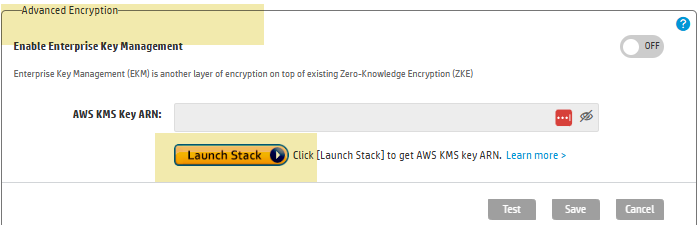
This opens the AWS CloudFormation Create Stack page with a pre-configured template.
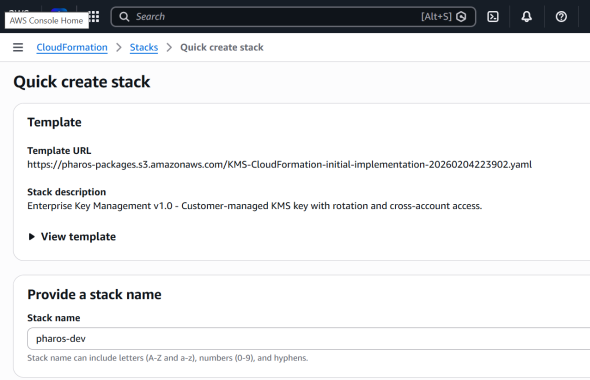
In AWS, click Create Stack. AWS provisions a KMS key configured for use with HP Insights.
Once stack creation completes, go to the Outputs tab in the CloudFormation console.
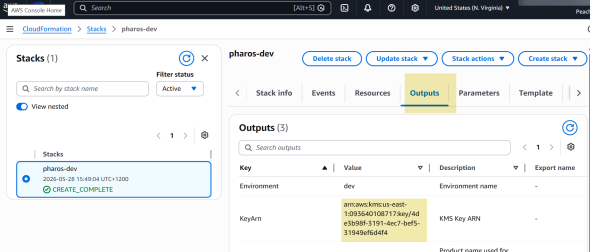
Copy the KMS ARN value (for example: arn:aws:kms:us-east-1:123456789012:key/key-id). You'll need this in Step 2.
Option B: Manual key provisioning
If you prefer not to use CloudFormation, provision the key and policy manually.
Create the KMS key
In the AWS console, navigate to KMS > Customer managed keys.
Click Create key and follow the setup steps. Create a symmetric key.
Once created, open the key and copy the ARN from the key details page. You'll need this in Step 2.
Grant the AWS account access in your key policy
Edit your key policy to add the AWS account that hosts HP Insights as a principal with the required cross-account permissions:
| Principal (AWS account that hosts HP Insights) | Permissions required |
|---|---|
992335167891
|
kms:Encrypt, kms:Decrypt, kms:DescribeKey, kms:GenerateDataKey* |
Step 2: Enable Enterprise Key Management
In the web console, navigate to Account Settings > Settings > Advanced Encryption.
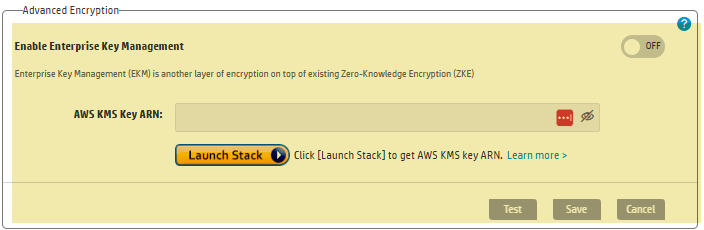
In the AWS KMS Key ARN field, enter the KMS ARN you copied in Step 1.
Click Test to verify that HP Insights can reach your key. Fix any connectivity or permission errors before continuing.
Turn the Enable Enterprise Key Management toggle ON.
Click Save. EKM is now active. New print jobs stored in the cloud will be encrypted using your customer-managed key.
Key rotation
HP Insights supports two types of AWS KMS key rotation:
| Rotation type | How it works | Action required |
|---|---|---|
| Automatic rotation (same key ARN) | AWS rotates the underlying key material while the ARN stays the same. Transparent to HP Insights. | None. No configuration changes needed. |
| ARN rotation (new key) | You create a new KMS key with a new ARN, for example in response to a security event or internal policy change. | Update the KMS ARN in Account Settings > Advanced Encryption and click Save. Keep the previous key accessible for at least as long as your print job retention period. Jobs encrypted with the old key cannot be decrypted after the key is removed. |
Revoking access
Disabling or deleting your customer-managed key in AWS KMS cuts off HP Insights's ability to decrypt data:
- Any DEKs already cached in memory remain usable for up to 5 minutes.
- After that, behaviour depends on your fail mode. In fail-open mode, new jobs are encrypted using a system-assigned key instead of your customer-managed key; job data is not left unencrypted, but the customer-managed EKM layer is not applied while the key is unavailable. In fail-close mode, job submission and release is blocked, and jobs encrypted with the revoked key are masked in the job list.
- Re-enabling the customer-managed key restores access. Encrypted jobs remain in storage and become releasable again once the key is active.