Change the lock screen image and text
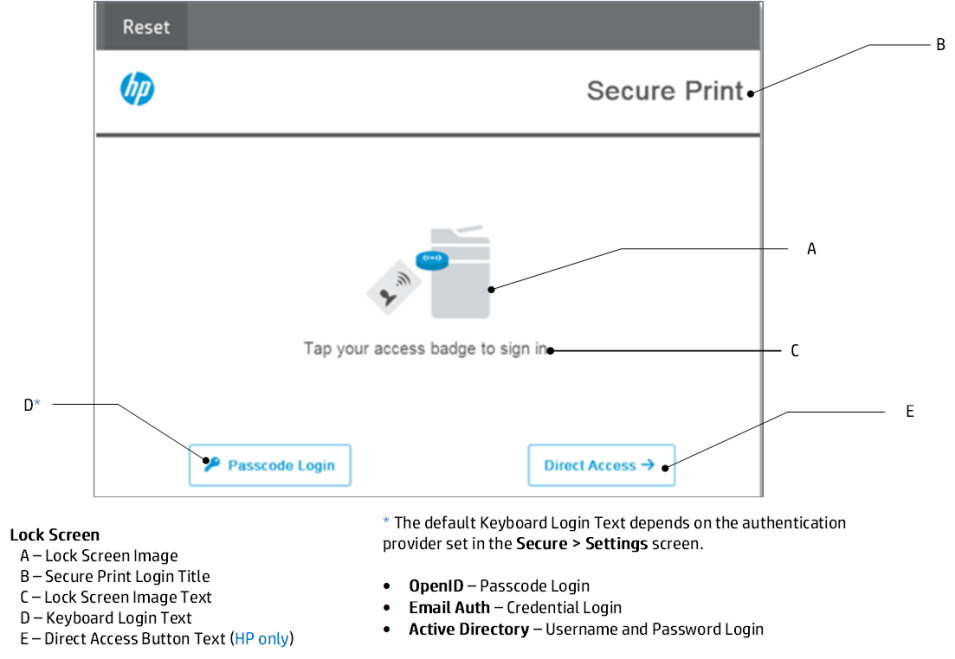
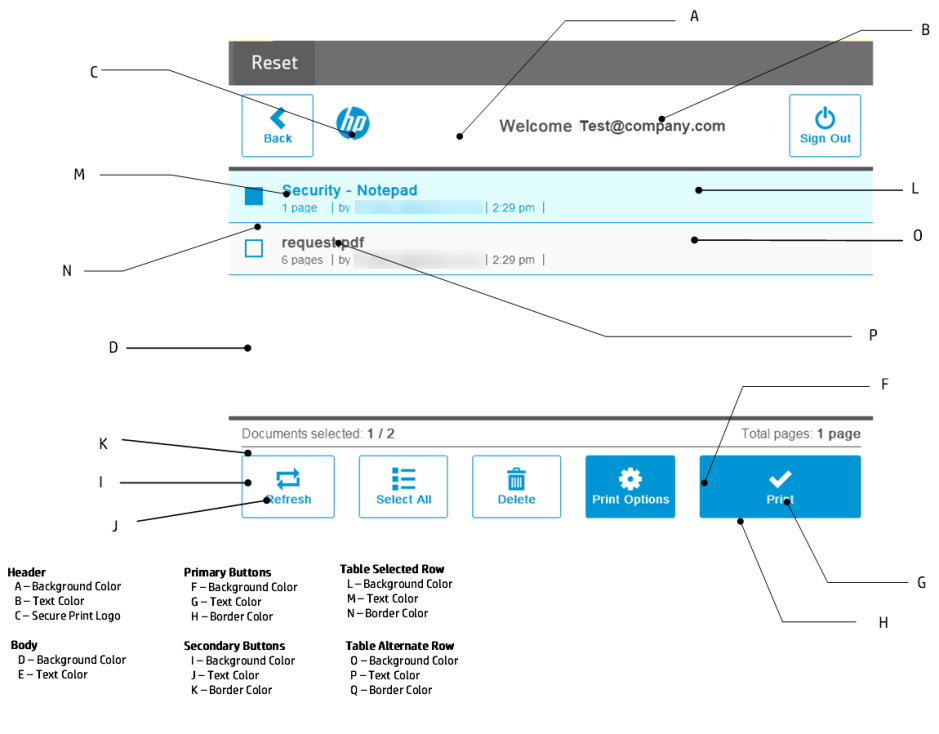
You can customize what users see on the lock screen of secured printers, including the image, the title, and the sign-in text. The images below show the elements on the printer screen that the theme settings affect.
-
In the web console, go to Account Settings > Theme.
-
In the left menu, click MFP Lock Screen.
-
Select the lock screen element you want to change:
- Lock Screen Image: click the upload button. In the browser window that opens, select the image to use. The maximum recommended size is 300 x 300 pixels.
- Secure Print Login Title
- Lock Screen Image Text
- Keyboard Sign In Text
- Direct Access Button
-
Click Save.
-
Reset the user interface on all affected printers by selecting the Reset button in the upper left corner of the printer screen.
Note: If you've used the Device Scout to secure the printer, make sure that you have the latest version of the Secure Print Service. You can find the latest version of the Secure Print Service in this document.