Sign in with QR Sign-In
With QR Sign-In, you sign in by scanning the QR code shown on the printer screen with the mobile app. You don't type anything at the printer, because the app already knows who you are.
Before you begin
- The HP Secure Print mobile app mobile app is installed and your phone is registered. See Register a Mobile Device.
- Your organization has turned on QR Sign-In for the printer.
Select QR Sign In
On the printer screen, select QR Sign In. A QR code appears on the screen.
Scan the code
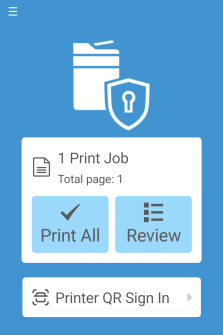
On your phone, open the HP Secure Print mobile app mobile app, select Printer QR Sign In, and scan the code on the printer screen.
Approve the sign-in
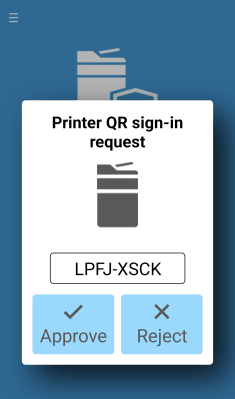
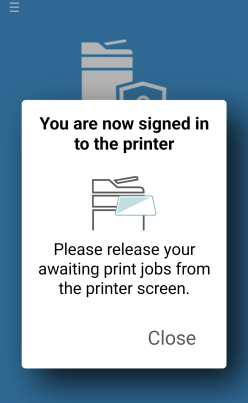
In the app, select Approve. The printer signs you in.
Next step
You're signed in, and your held jobs are listed. Choose the ones you want and select Print. See Release jobs at the printer.