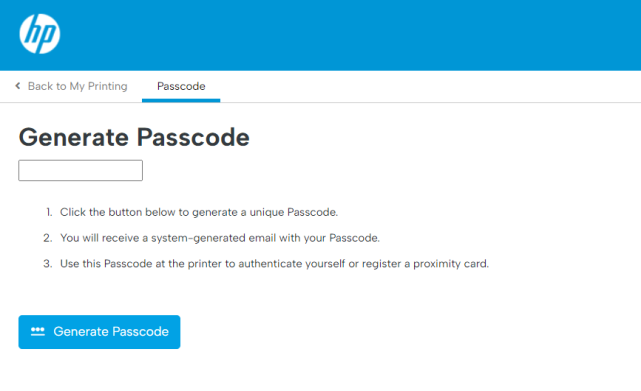
Generate a passcode in the User Portal
Users can use the end-user portal to generate a passcode. They need to sign in to the end-user portal using their OpenID Connect or SAML email address. If it's their first sign-in, the user's email address will be registered, and they will be prompted to generate a passcode. This passcode will be sent to the user's email address for future reference.
To generate a passcode:
-
Click on the link to the user portal provided by the IT administrator.
-
Sign in to the user portal using your OpenID Connect or SAML email address.
-
If this is your first time signing in, a notification banner appears at the top of the page with the message:
“Passcode is required to authenticate at any secure printer. Click here to generate a new passcode.”
-
Select the message link to begin creating your passcode.
-
Follow the on‑screen instructions to generate and confirm your passcode.
-
Once the passcode is created, you can use it to authenticate at any secure printer.
Alternatively, you can select the Menu icon on the right‑hand side of the User Portal. Select Passcode from the menu options. Click the Generate button to create a new passcode.